
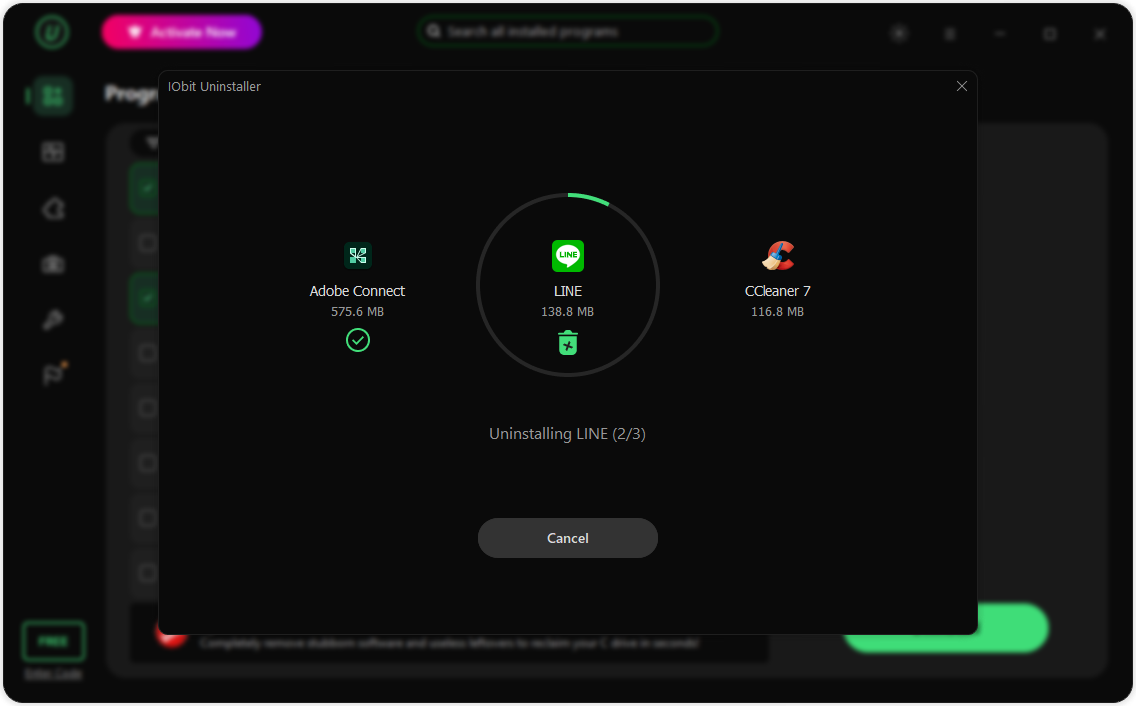
Unwanted browser extensions and hidden background processes can quietly eat up system resources and drag down your PC’s performance. Often, apps keep running or leave behind clutter even after you’ve closed or uninstalled them. Taking a few minutes to audit your startup items, extensions, and active processes goes a long way.
This guide covers straightforward ways to spot and get rid of digital clutter without jumping through hoops. For a more thorough cleanup, tools like IObit Uninstaller can also help strip away stubborn software and sweep up leftover registry files to keep Windows running smoothly.
Part 1: Tips for Managing Unwanted Extensions and Hidden Background Apps
Managing unwanted extensions and hidden background apps is important for keeping your PC fast, secure, and responsive. Here are some tips that you can use to manage unwanted extensions and hidden background apps:
- Review Installed Extensions Regularly
Reviewing installed extensions regularly is one of the best methods to manage unwanted extensions. Over time, you may install extensions for specific tasks and later forget about them. Here is how to review installed extensions on Google Chrome:
- Open Google Chrome and click on the three-dot menu in the top-right corner.
- Select “Extensions” and then click “Manage Extensions.”
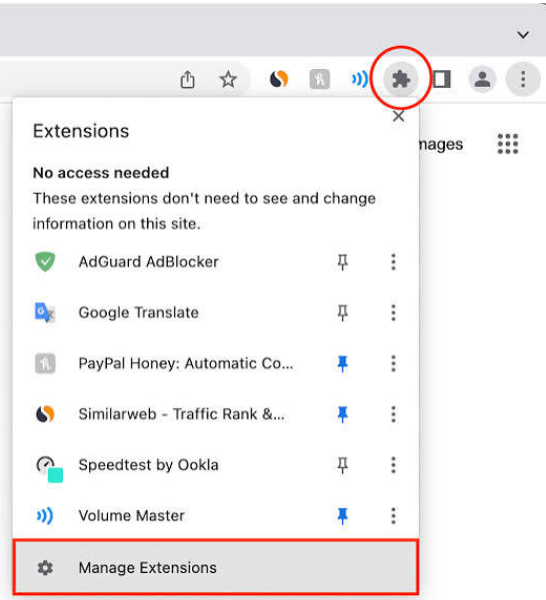
- All installed extensions will appear on your screen. Review each extension and identify any that you no longer use.
- Finally, click on the “Remove” button to uninstall unwanted extensions from Google Chrome.
- Check Background Apps
Hidden background apps can consume CPU, RAM, disk space, and network resources even when you are not actively using them. Regularly checking which applications are running in the background can help you identify unnecessary programs and improve your PC’s performance. Here is how to check background apps on Windows.
- Press Ctrl + Shift + Esc to open Task Manager. Next, click “Processes” to view the apps and background processes currently running.
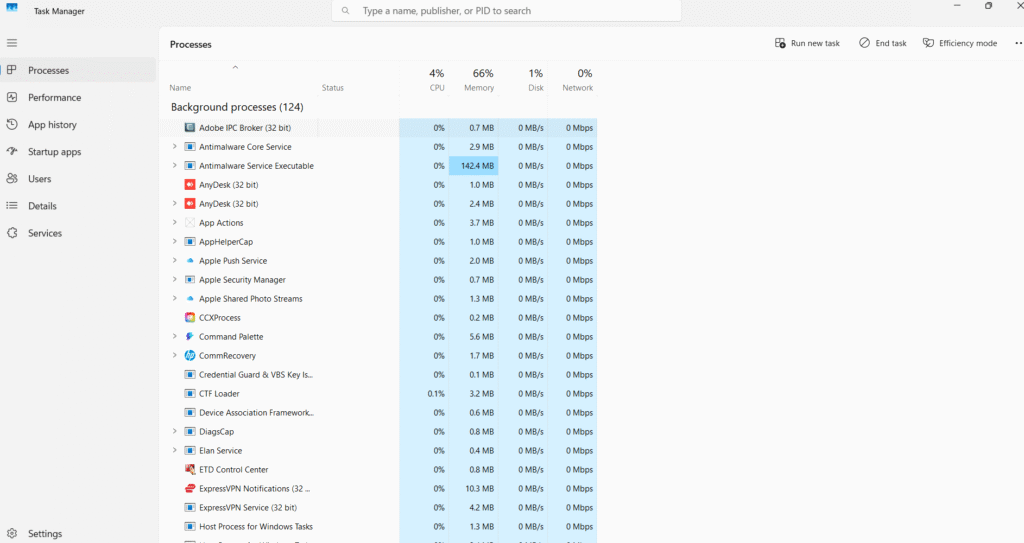
- Check the CPU, Memory, Disk, and Network columns to identify apps using excessive system resources.
- Select an unnecessary application that you recognize and click on the “End Task” option.
- Uninstall Unwanted Extensions and Apps
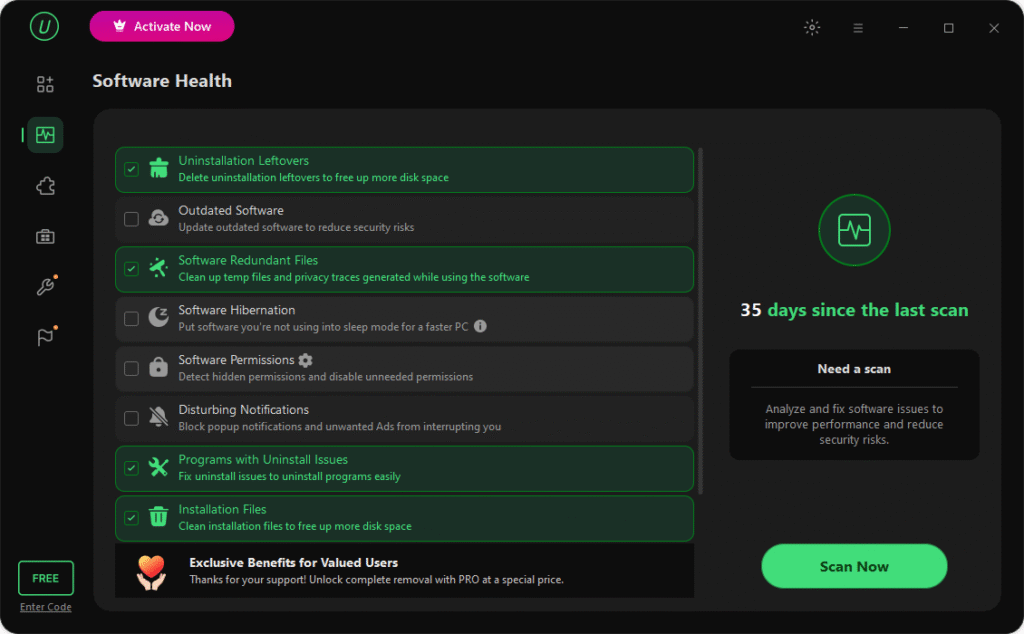
If all the above methods fail to manage unwanted extensions and apps, the final step is to completely remove them from your PC. For this purpose, choose a reliable uninstaller for Windows like IObit Uninstaller. It is one of the best tools available in 2026, allowing users to remove stubborn programs, extensions, and unwanted applications with just a few clicks. It can also scan for leftover files, folders, and other data that may remain after the standard uninstallation process. The best part of this tool is that it offers an intuitive interface, which enables users to remove unwanted extensions from a PC without professional help.
See also: How to Start a Profitable Online Business from Scratch
Key Features of IObit Uninstaller
- Uninstall Unwanted Extensions: IObit Uninstaller allows users to remove unwanted browser extensions that may slow down browsing or consume unnecessary resources. It helps users identify and remove extensions they no longer need.
- Force Uninstall +: With the help of this feature, users can easily remove programs that cannot be uninstalled via standard methods due to missing uninstall entries or faulty built-in uninstallers.
- Batch Uninstall: One of the standout features of this tool is that it enables users to select and uninstall multiple unwanted programs, extensions, and applications at the same time, saving time and effort.
- Bloatware Removal: This feature enables users to remove pre-installed Windows apps and components. Removing unnecessary bloatware can help free up storage space and reduce the number of unwanted programs running on your PC.
- Intuitive Interface: IObit Uninstaller offers an easy-to-use interface, which is ideal for non-tech and beginner users. No professional help or technical knowledge is required to remove unwanted extensions and background apps.
How to Remove Unwanted Extensions Using IObit Uninstaller
Follow the instructions below to learn how to remove unwanted extensions using IObit Uninstaller:
- Open your web browser and navigate to the IObit Uninstaller official site. Download and install the latest version of the program on your PC and launch it.
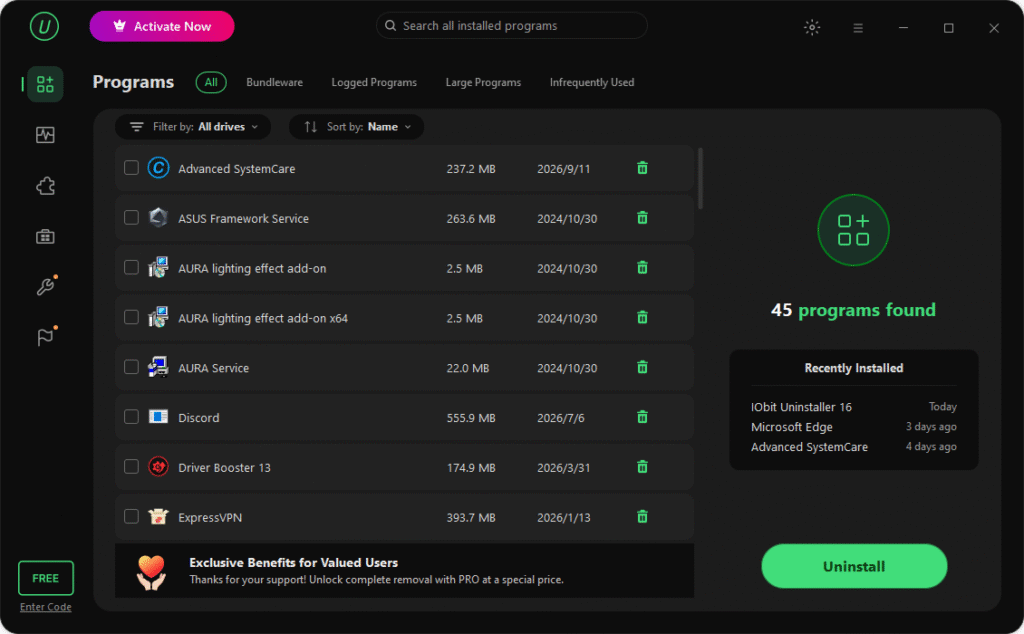
- Next, choose the “Browser Extensions” option from the left panel. All the installed extensions on your device will appear on your screen.
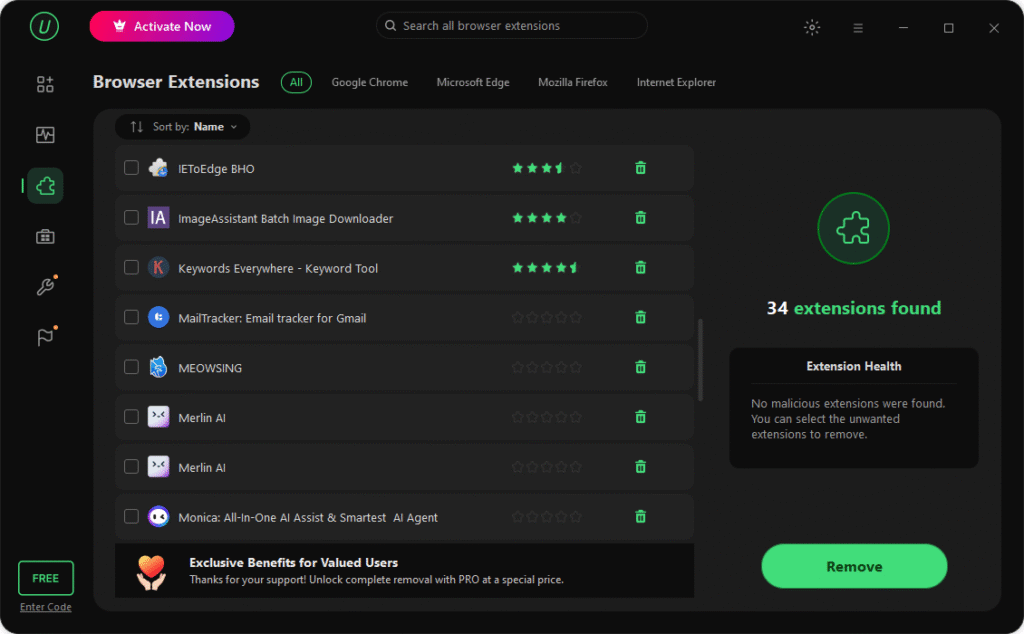
- Choose the “Extensions” you want to remove from your PC and click on the “Remove” button available on the right panel.
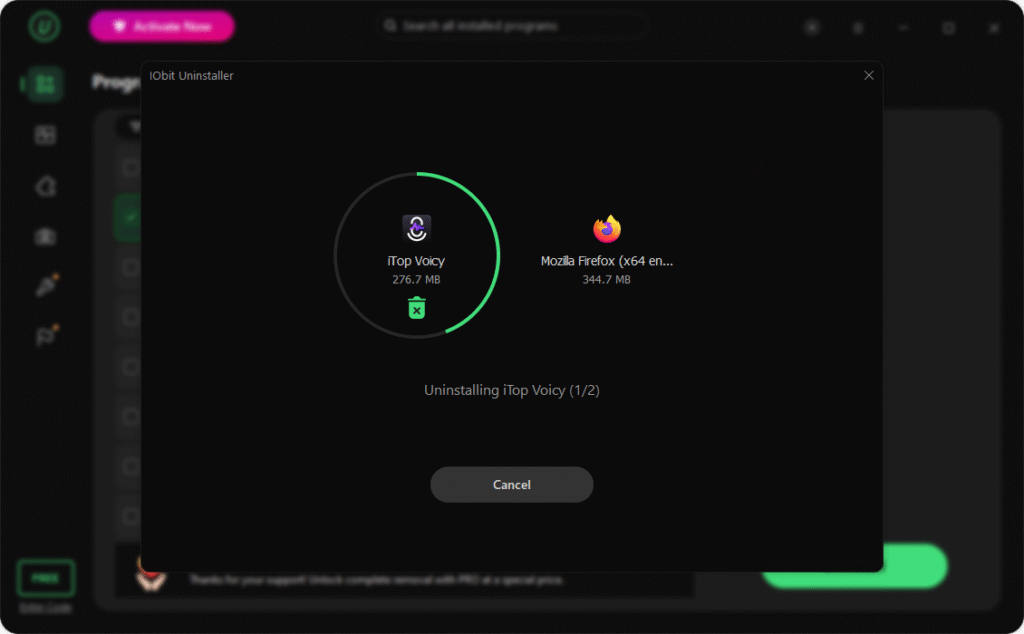
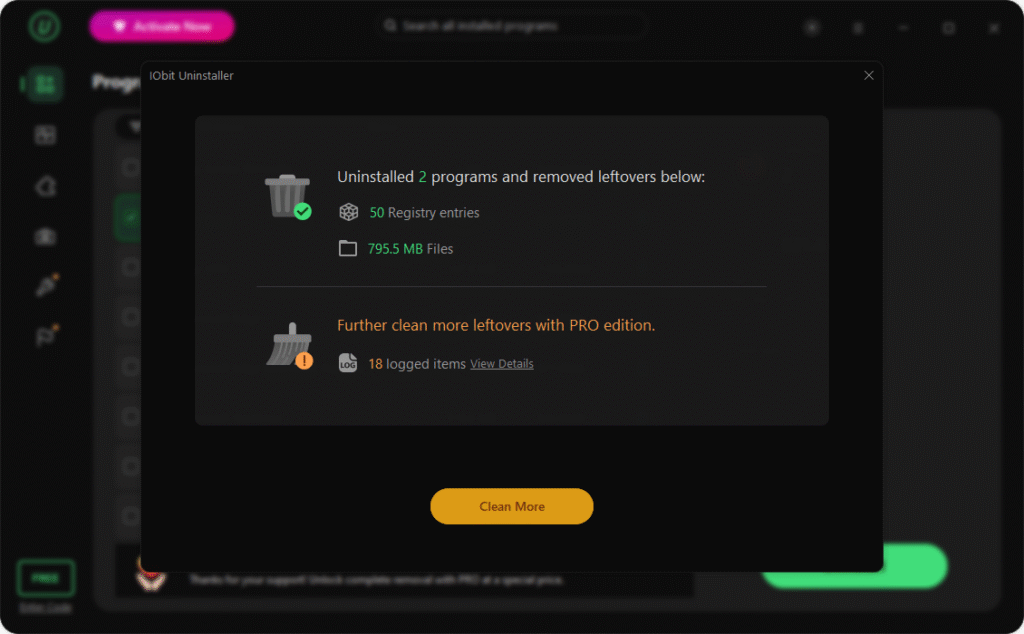
- IObit Uninstaller will begin the uninstallation process and, within seconds, remove the browser extension from your PC.
Final Thoughts
This guide has provided you with the pro tips for managing unwanted extensions and hidden background apps. Plus, it also introduces one of the best uninstallers available in 2026, named IObit Uninstaller. This tool enables users to completely remove unwanted programs, browser extensions, bloatware, and other unnecessary applications from their PCs.




 Paintless Dent Repair (PDR) 101: How Small Dents Get Fixed Without Repainting